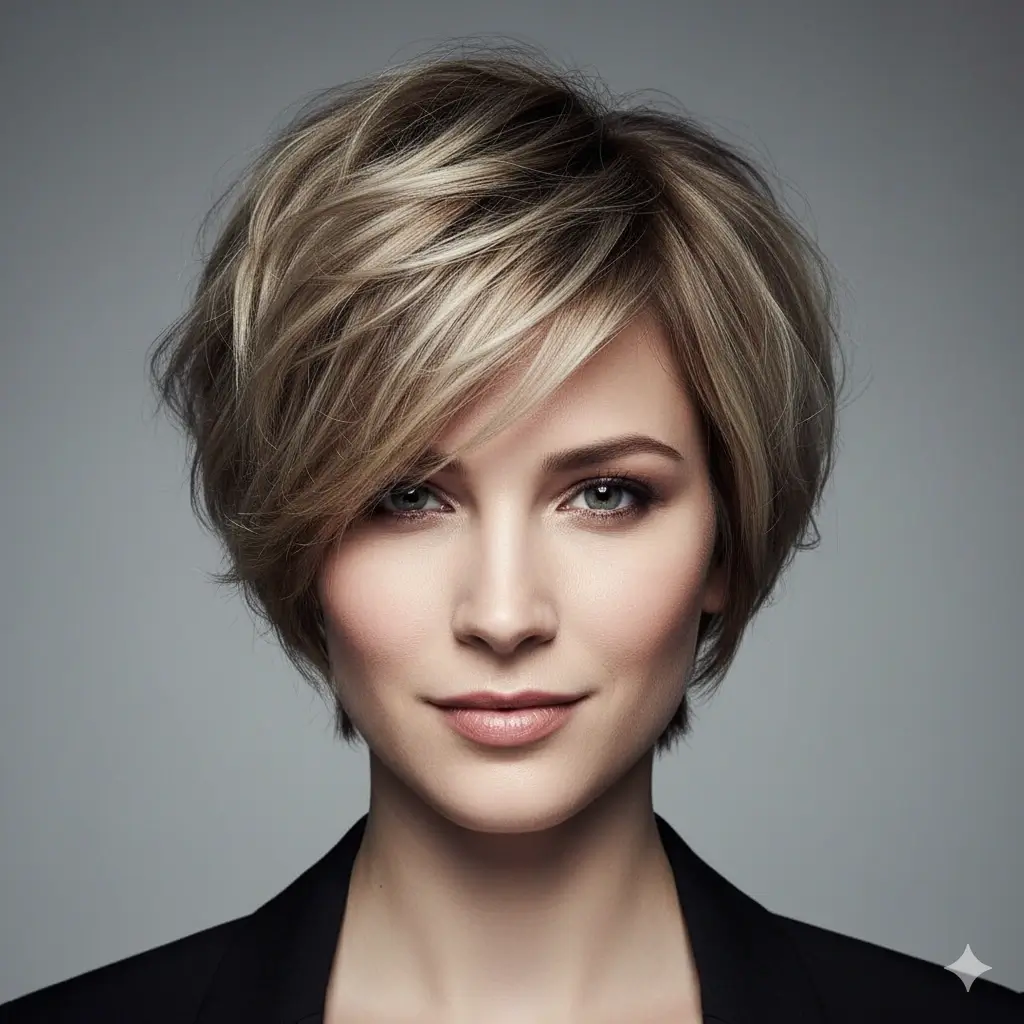
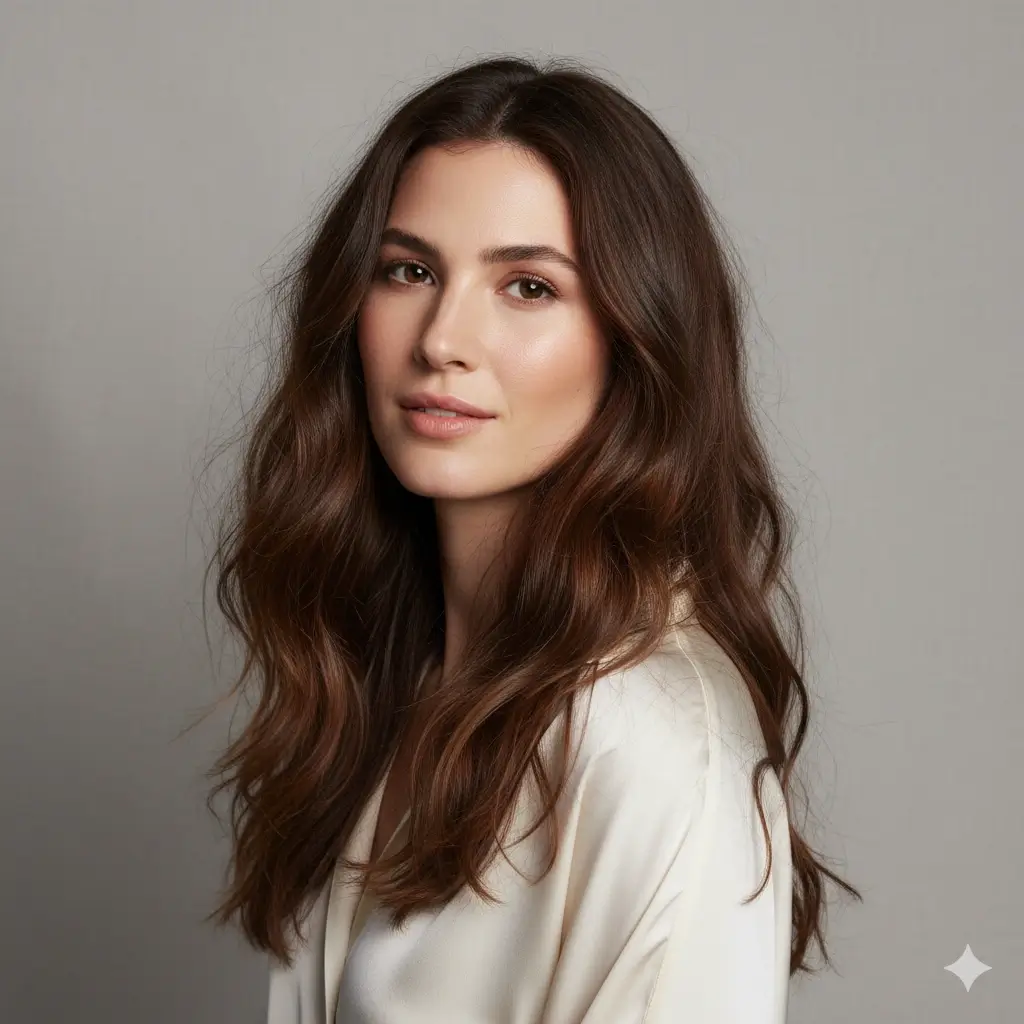
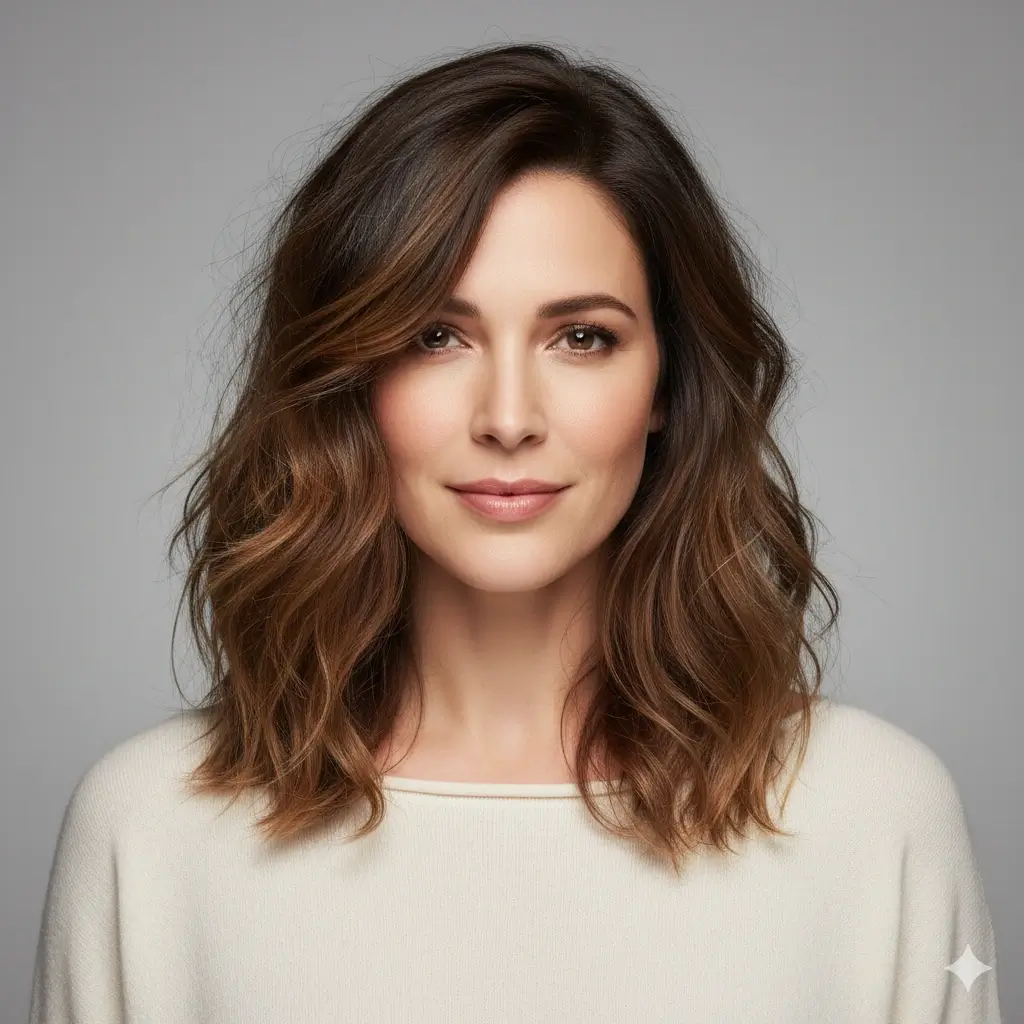
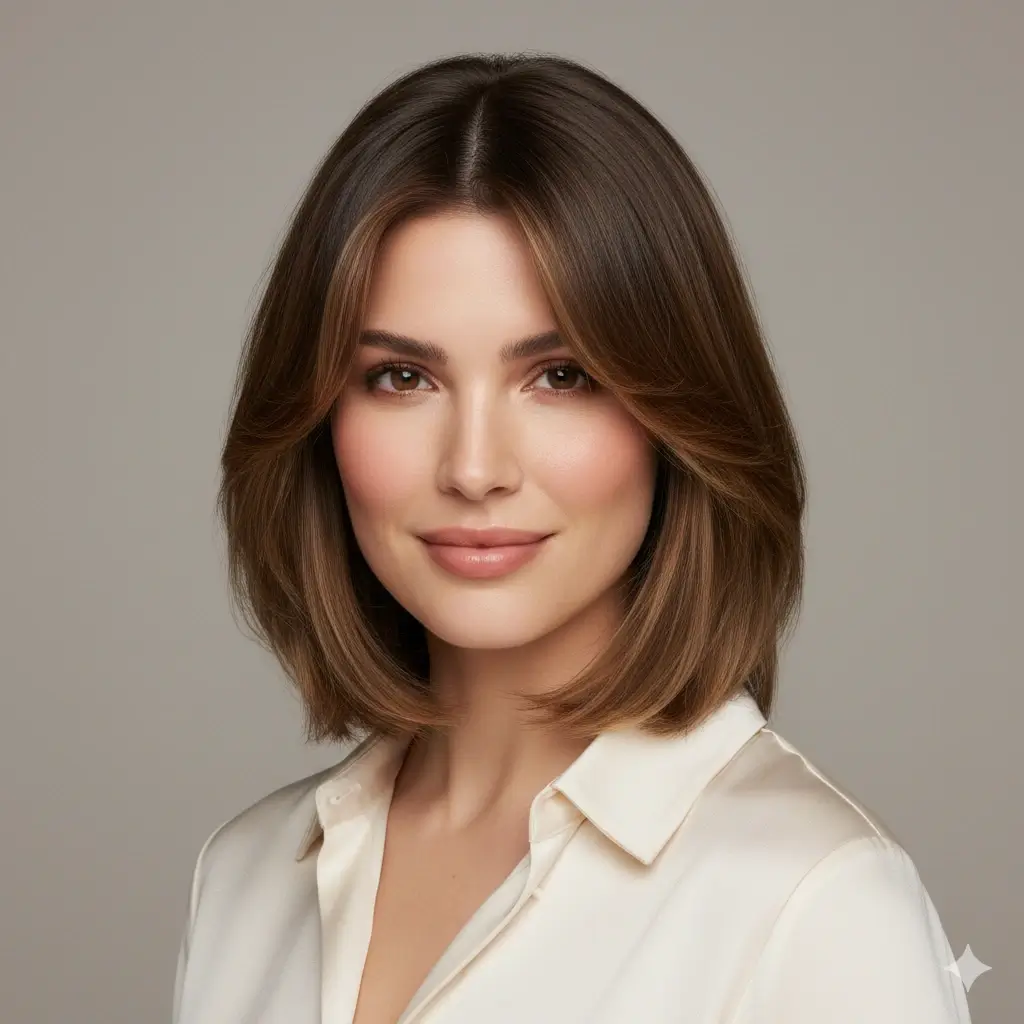
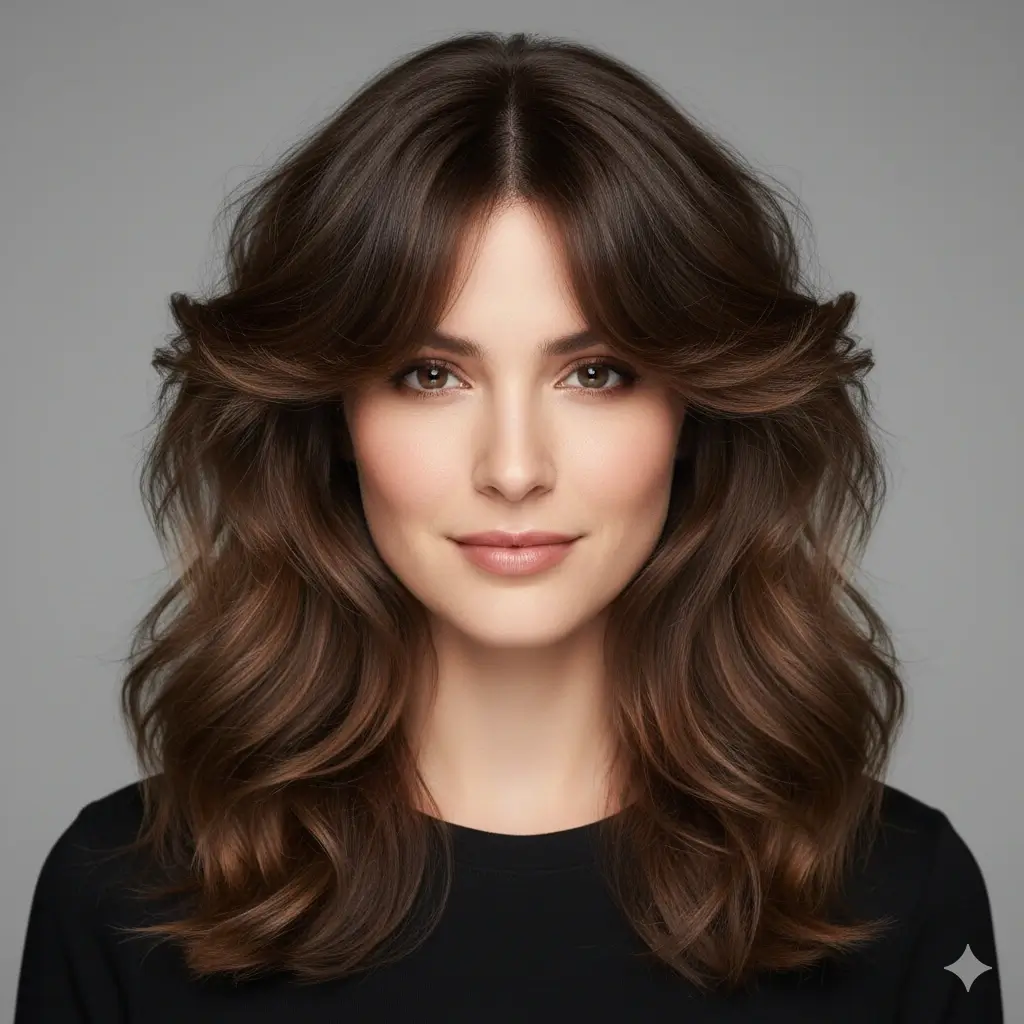
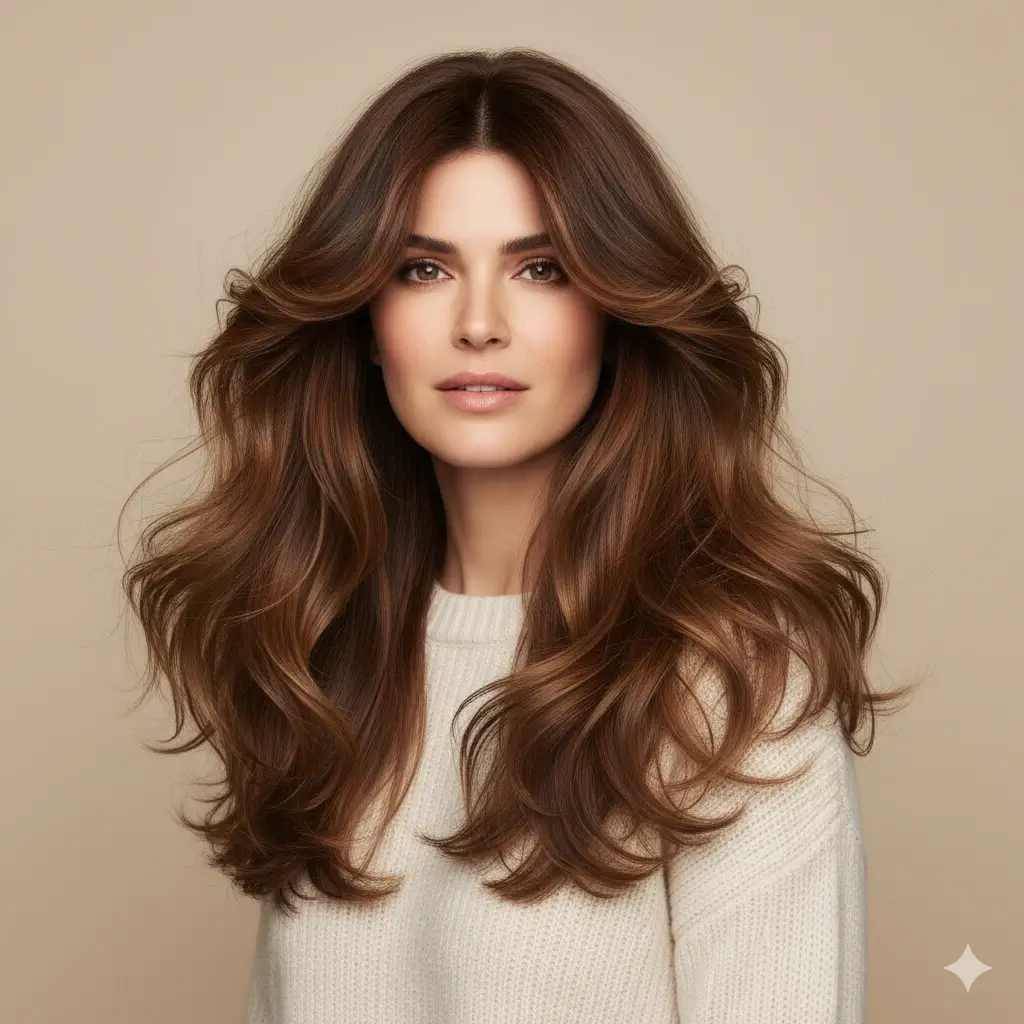
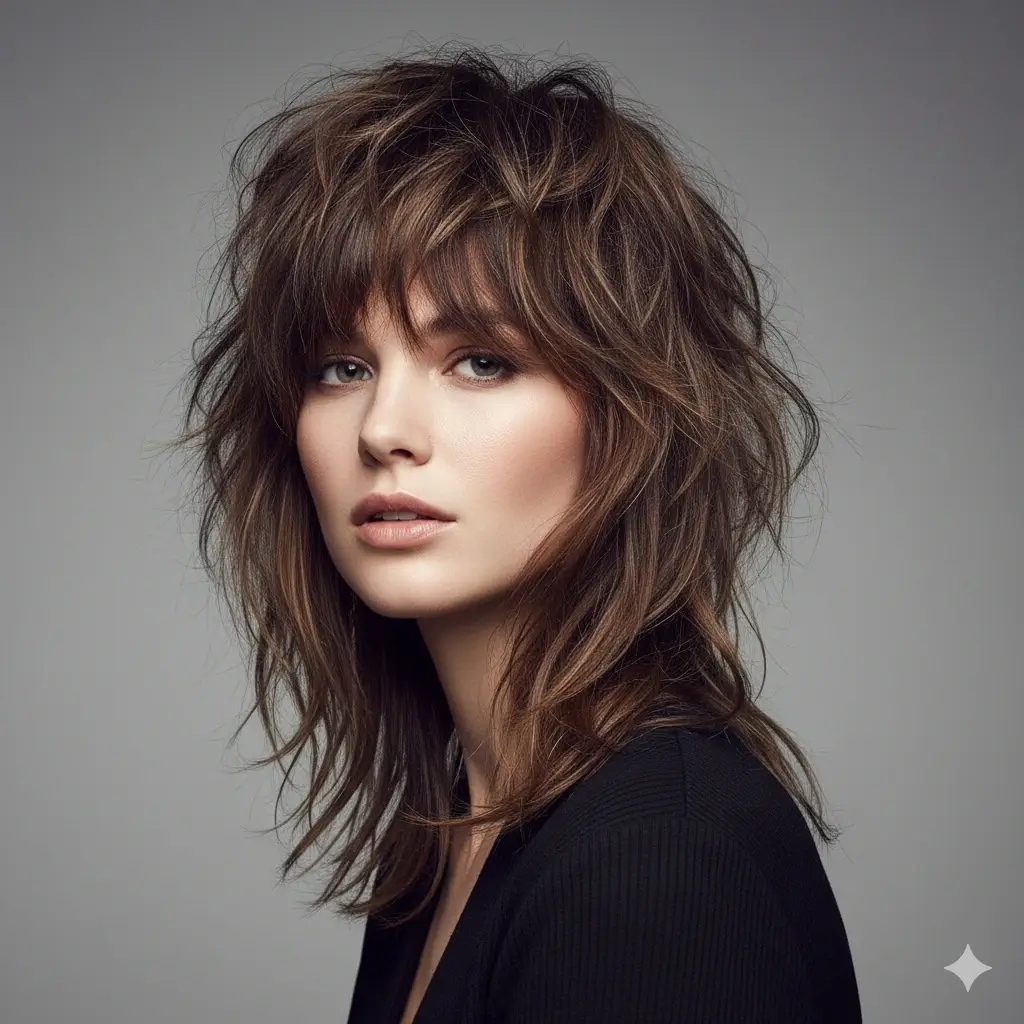
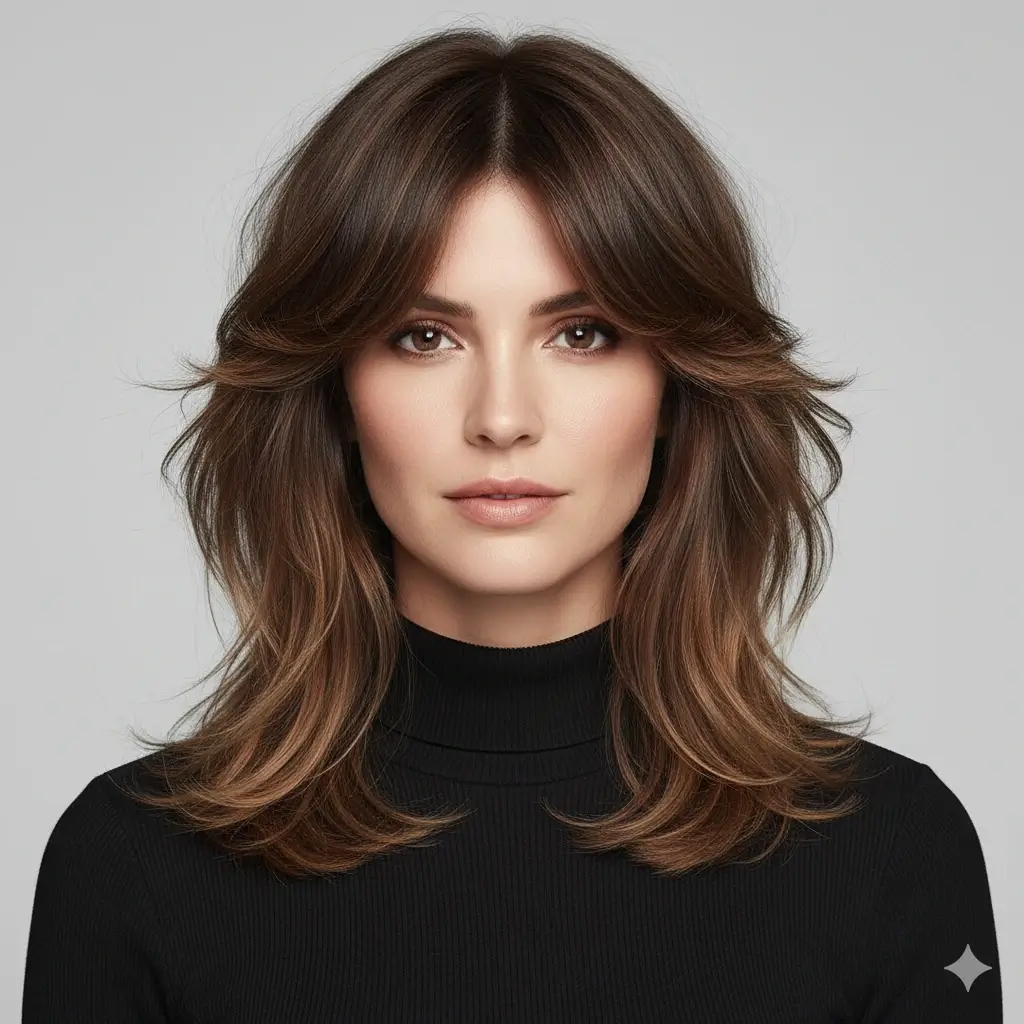
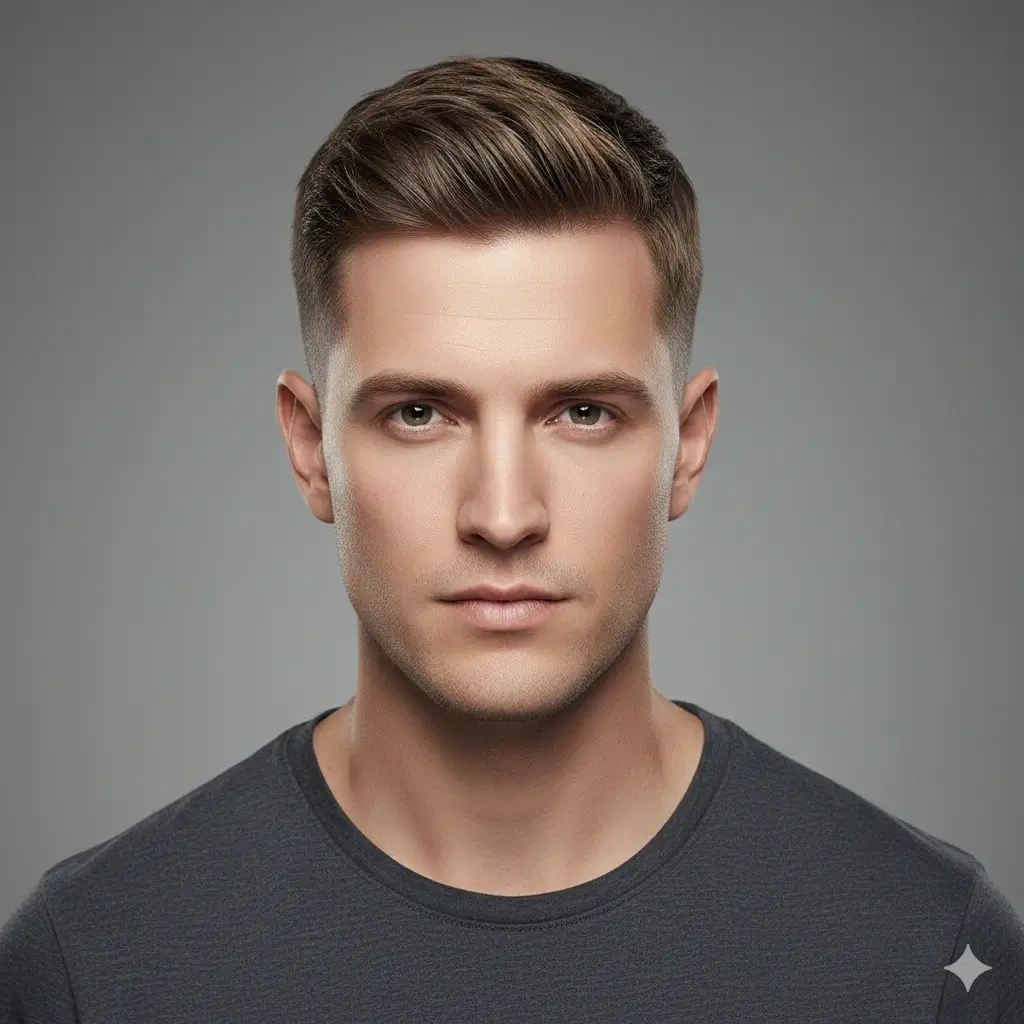
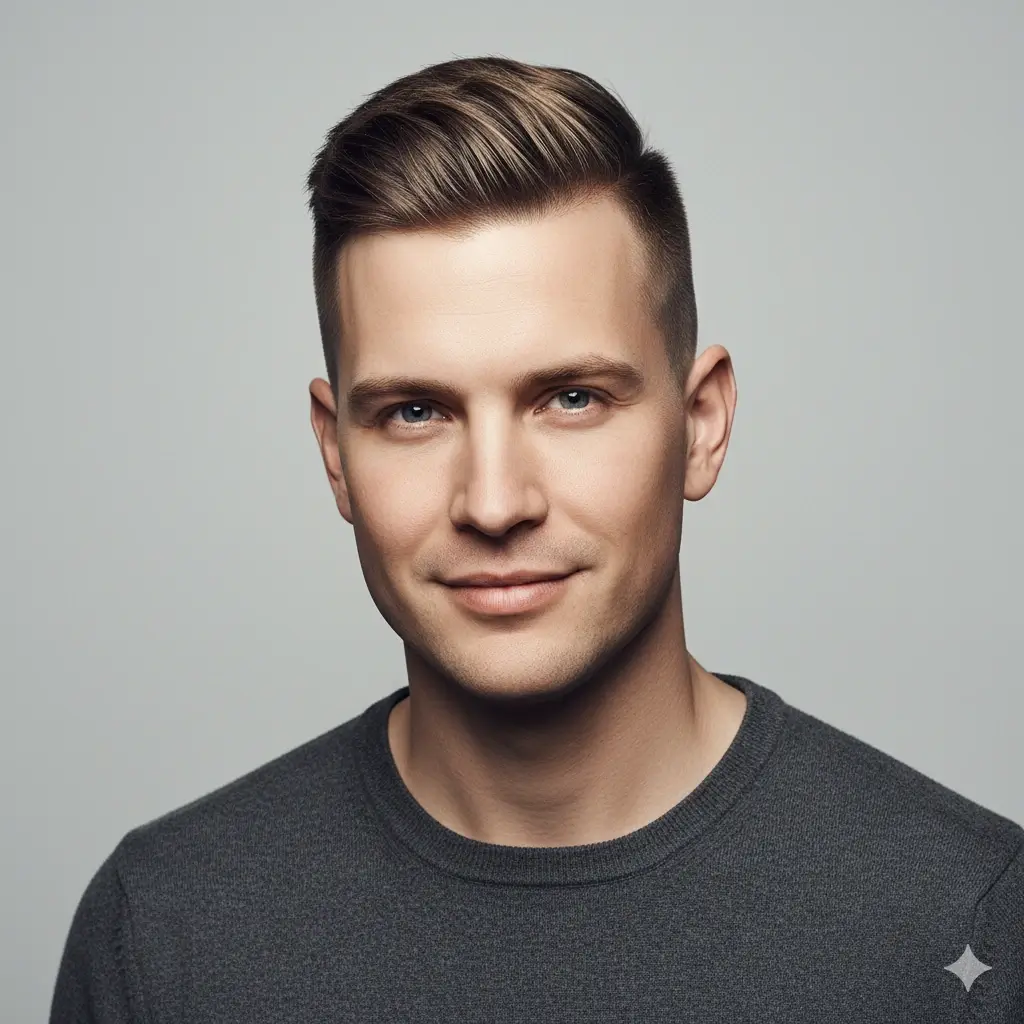
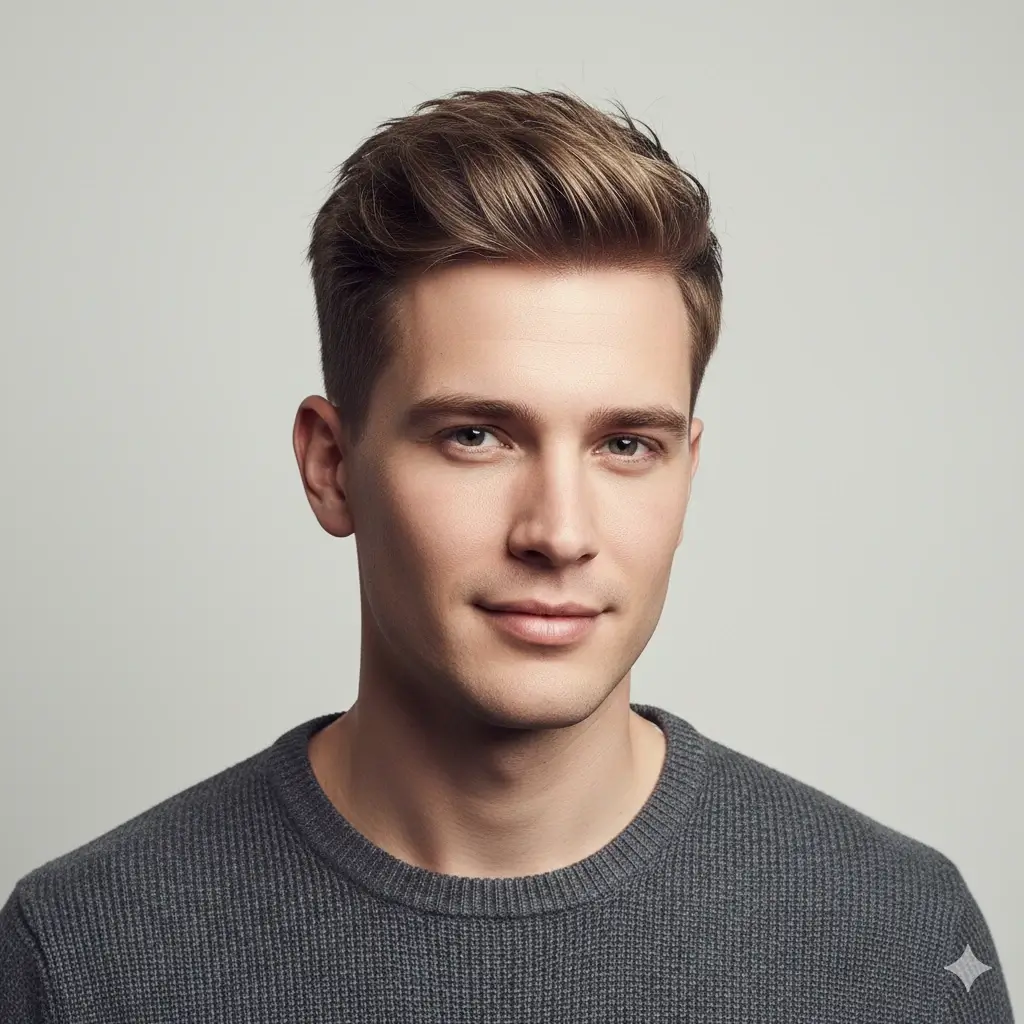
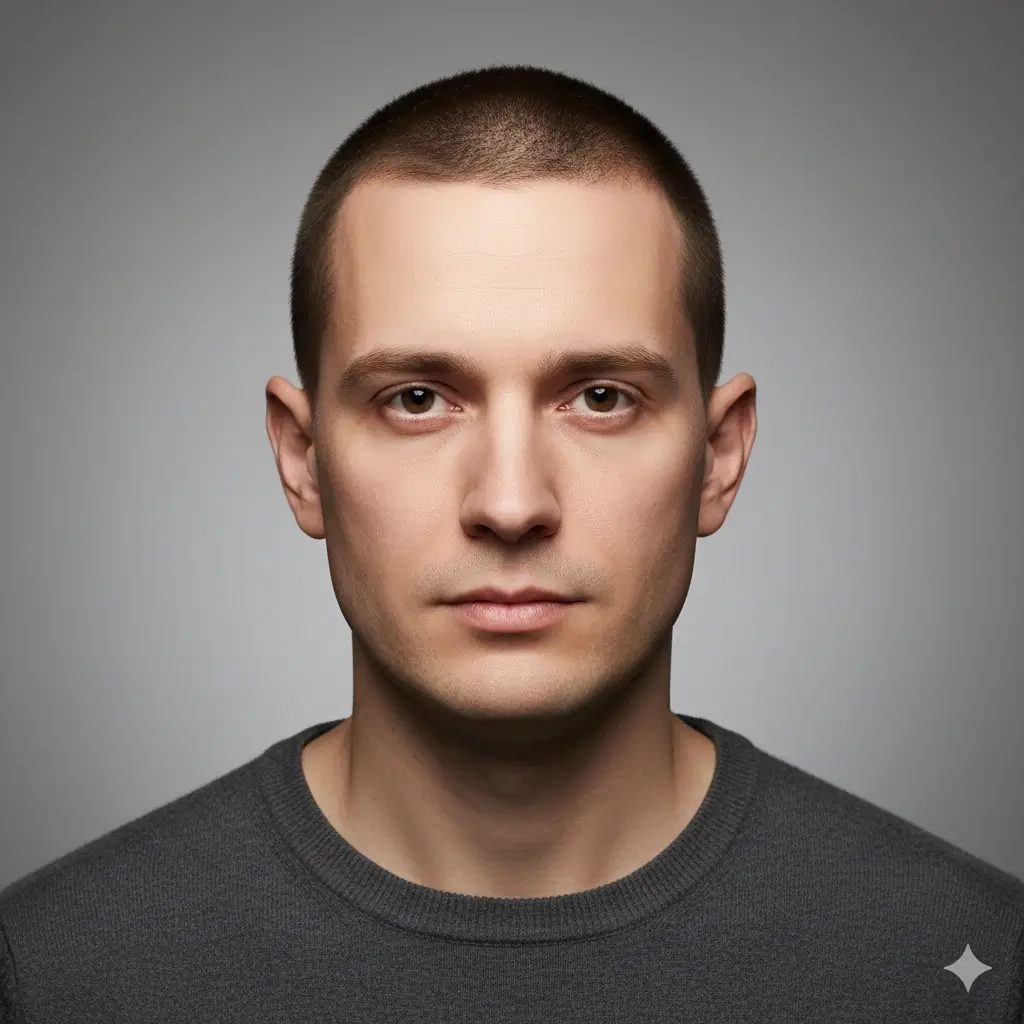
Special Offer: 20 Hairstyle Generations for Only $4.99! 20 Hairstyles for Only $4.99!
AI HAIR EDITOR Make a focused hair edit on your own portrait

AI Hair Editor: Edit Hairstyles in Your Photo

Upload a clear portrait, choose the hair direction you want to explore, and create a visual edit on your own face. Compare shape, fringe, texture, and color before you explain the idea to a stylist or barber.

Upload your own portrait Edit cuts, fringe, texture, and color Download a practical visual reference
1

Upload a Photo to Change Hairstyle

Upload Your Photo

Choose a clear portrait so the AI hair changer can read your face, hairline, lighting, and current hair shape.

Supported: JPG, PNG, WEBP • Max size: 10MB

Best photo tips for a natural hairstyle change:

  • Use a front-facing portrait with your full face visible
  • Keep your hairline, forehead, ears, and jawline visible when possible
  • Choose even lighting so the new hairstyle blends with the photo
  • Avoid hats, sunglasses, heavy filters, strong shadows, and hair covering your face
2

Choose the Hairstyle AI Should Add

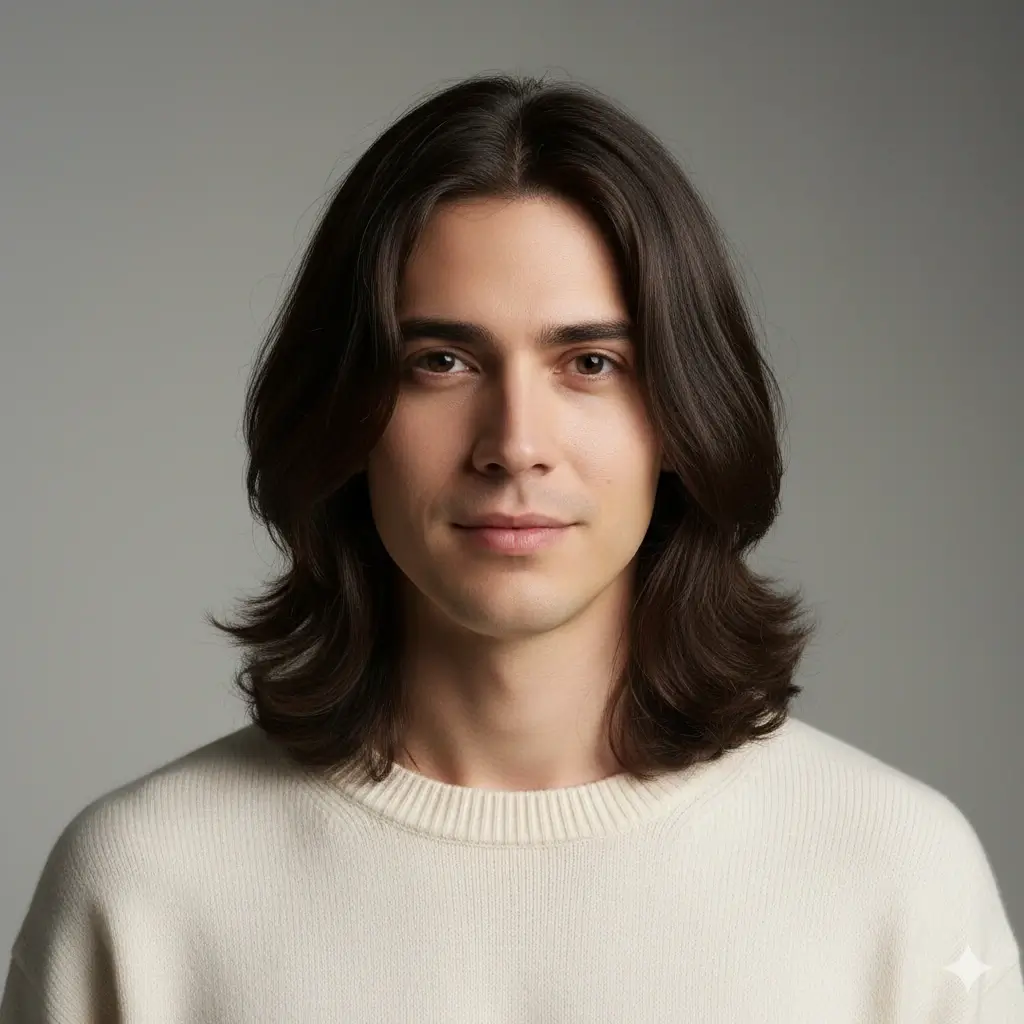
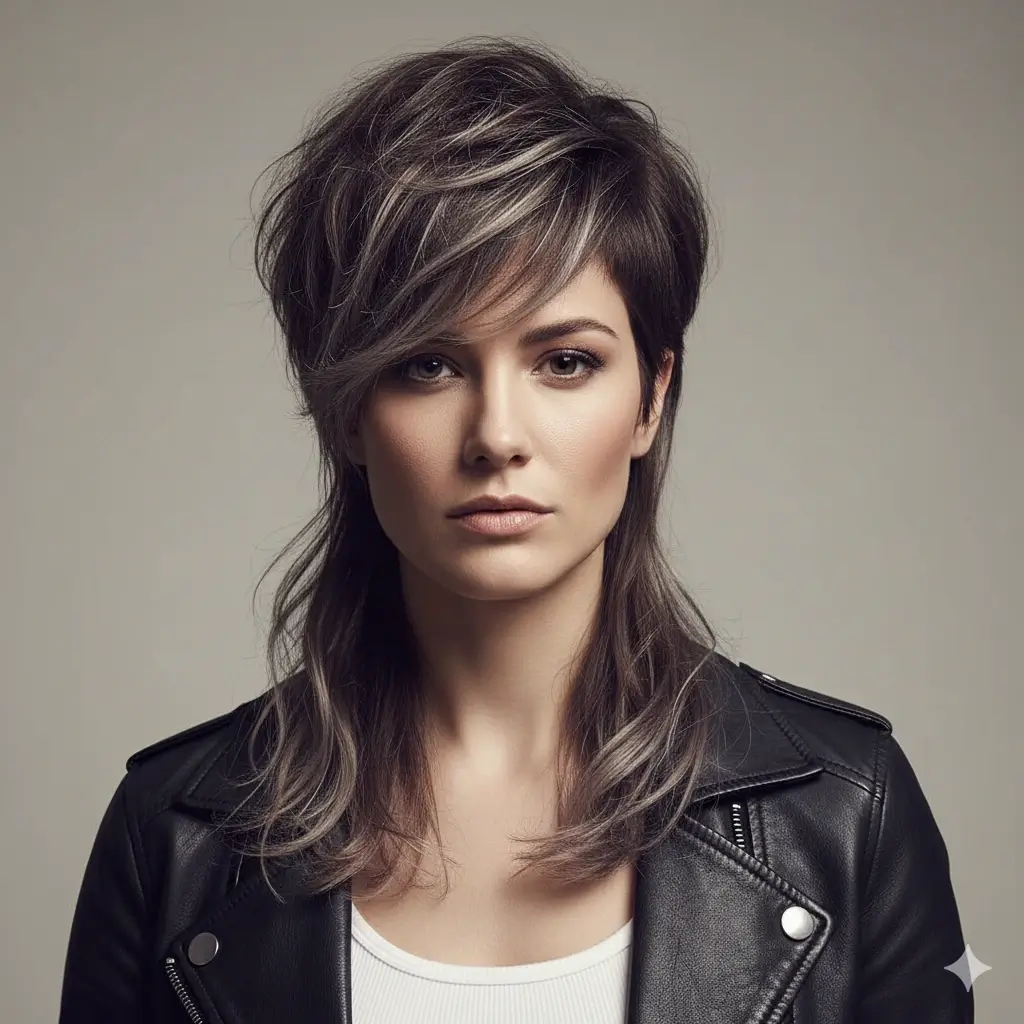
Pick the kind of change you want in the photo: shorter cut, bangs, curls, men’s haircut, longer layers, or a trend style.
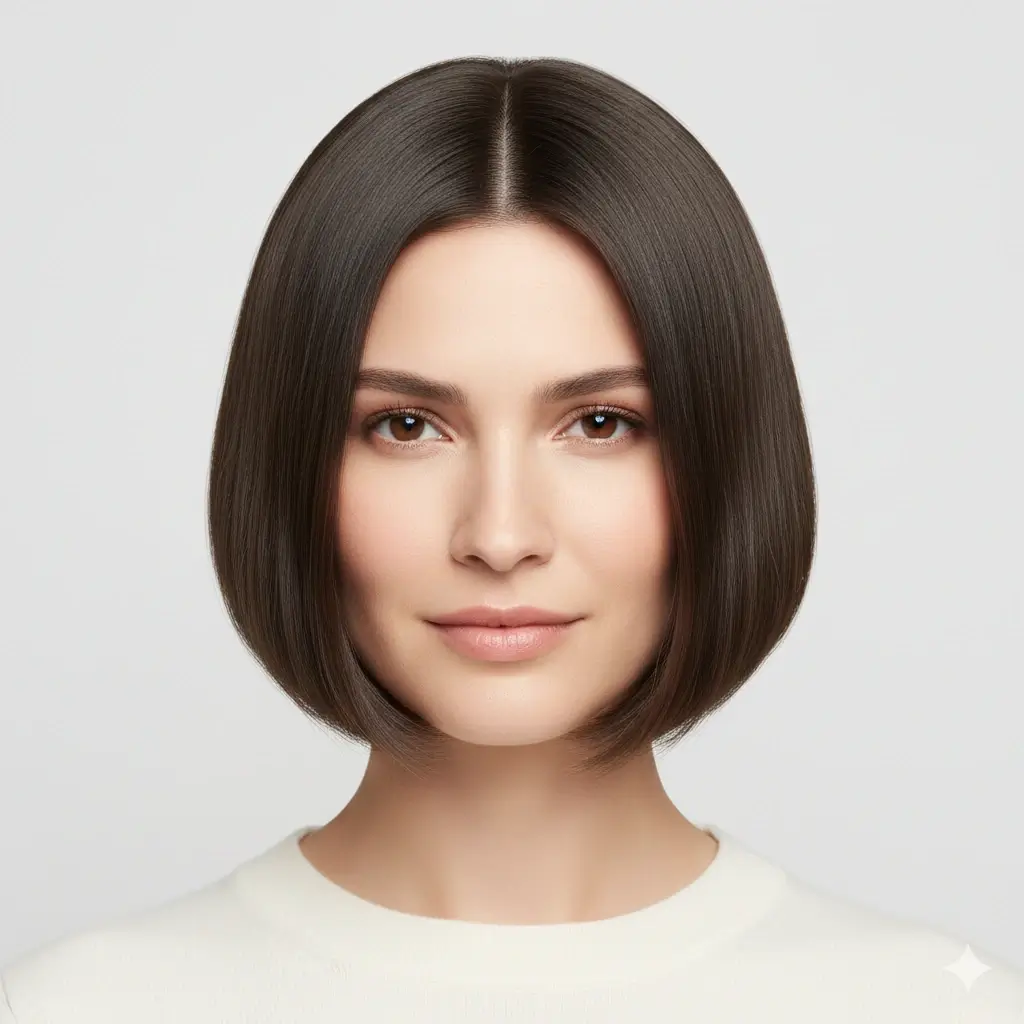
Bob Cut
Bob Cut
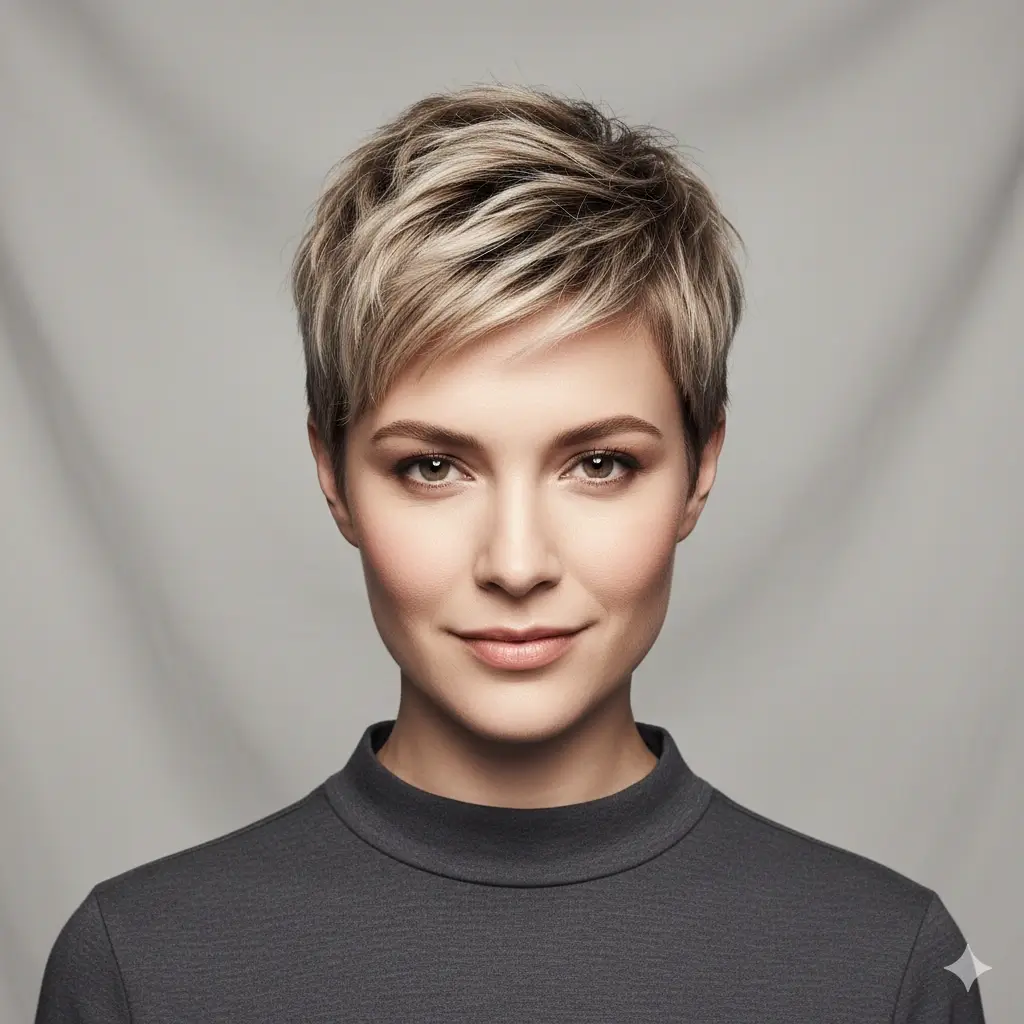
Pixie Cut
Pixie Cut
Bixie Cut
Bixie Cut
Long Waves
Long Waves
Beach Waves
Beach Waves
Lob with Curtain Bangs
Butterfly Cut
Butterfly Cut
Layered Long
Layered Long
Wolf Cut
Wolf Cut
Shag Cut
Shag Cut
Fade
Fade
Undercut
Undercut
Textured Crop
Textured Crop
Buzz Cut
Buzz Cut
Curtain Hair
Curtain Hair
Modern Mullet
Modern Mullet
3

Choose an Optional Hair Color

Keep your original color or change hairstyle and hair color in the same photo.

Blonde
Brown
Black
Auburn
Gray
Platinum

Your AI hair changer setup:

No photo uploaded
No hairstyle selected
Original color (no change)

Loading credits...

Each AI hairstyle generation costs 2 credits

CHOOSE AN EDITING DIRECTION

Start with the Hair Detail You Want to Change

Choose one comparison goal, then use the hairstyle and color controls to make the preview.

Use the hairstyle grid to test a shape change, then compare the outline around your jaw, temples, and neck.

Cut and shape

Compare bobs, layers, fades, crops, pixie cuts, and longer silhouettes while keeping the rest of the portrait familiar.

Fringe and framing

Explore bangs, curtain fringe, face-framing layers, or a softer front shape when the hair around your forehead and cheeks is the main concern.

Texture and volume

Use waves, curls, textured crops, or layered movement to see how a different surface changes the way your hair frames the face.

Color direction

Preview blonde, brown, black, auburn, gray, or platinum after selecting a cut. The color is a visual reference for a later salon conversation.

How to Use the AI Hair Editor

The page keeps the editing path simple: establish a reliable source photo, make one meaningful change, then compare the result with real-world constraints.

1

Choose a clean source

Upload a front-facing or gently angled portrait with the hairline, temples, jaw, and neck visible. Even light gives the editor more useful edges to follow.

2

Name the change

Choose a style card that matches your editing focus. Start with one clear direction instead of combining several dramatic changes in your first test.

3

Add or skip color

Keep the original color when you are judging shape, or add one color preview when tone is part of the decision. You can run another comparison later.

4

Read the result carefully

Compare the silhouette, part, hairline, and shadows with the original. Save the strongest reference and use it to discuss length, upkeep, and technique with a professional.

Match the Edit to the Decision You Need to Make

The best preview answers one practical question. Use this matrix to decide which control and comparison will give you the clearest next step.

Editing goal Start with Inspect in the preview Useful next step
Will short hair suit me? Bob, crop, pixie, fade, or buzz cut Jaw framing, temples, neckline, and visible ears Ask a stylist about the grow-out and maintenance plan
Can I add movement? Long layers, soft waves, or a textured cut Where the volume begins and whether the ends stay full Discuss layer length and your natural texture
Would bangs change the balance? Bangs or curtain fringe Forehead coverage, parting, cheek framing, and daily styling Bring the image and ask for a low-commitment version first
Which color feels believable? One color swatch with a familiar cut Contrast with brows, skin, clothing, and the original light Ask about strand tests and maintenance before dyeing
How do I explain the idea? The closest shape plus one saved result The exact length, part, fringe, and texture you want to mention Use the preview as a reference, not an exact promise
What should I rule out? Two nearby options on the same portrait Which edit looks demanding, unfamiliar, or hard to grow out Keep the safer option and ask about a staged change

The editor changes pixels in a portrait; it does not measure hair density, curl behavior, growth direction, or the exact technique a salon will use. Treat every result as a comparison aid.

Get a More Useful Hair Edit

Good inputs make comparisons easier to read. These checks also make it clearer which parts of the image are a visual suggestion rather than a promise.

Use a photo like this

  • Keep the face, hairline, temples, and neck visible instead of hiding them with a hat or large sunglasses.
  • Use daylight or even indoor light so the original shadows do not compete with the edited hair.
  • Choose a simple background when possible; busy edges can make a new silhouette look less clean.
  • Use the same portrait when comparing two styles so the shape, pose, and lighting remain consistent.
  • Start with a familiar cut before testing a bold color or a very short silhouette.
  • Save the strongest result with a short note about length, fringe, texture, and color.

Read the result with care

  • A low-resolution, strongly filtered, or sharply angled portrait gives the editor fewer reliable hair edges.
  • Complex curls, braids, updos, covered hairlines, and extreme color changes can be less predictable than common cuts.
  • The image cannot tell you whether your hair has enough density or elasticity for the pictured technique.
  • A color preview does not replace a patch test, a strand test, or advice about chemical services.
  • Small artifacts around glasses, earrings, ears, or the background are a reason to try another source photo.
  • A generated image is not a diagnosis, a salon guarantee, or a promise that the same result will grow out the same way.

AI Hair Editor FAQ

Answers about editing hair in a photo, choosing inputs, and using the generated result responsibly.

An AI hair editor changes the hairstyle area of an uploaded portrait so you can compare a different cut, fringe, texture, or color on your own face. It is designed to make a hair idea easier to discuss, not to guarantee a salon result.

A filter is often a quick visual effect, while this editor uses a chosen hairstyle and your own portrait to create a fuller reference image. The boundaries overlap, so use the result for comparison rather than treating either output as a precise measurement.

The workflow is designed to preserve the portrait while changing the selected hair direction. Lighting, pose, glasses, and background can still influence the result, so compare it with the original and try another photo if edges look unusual.

Use a clear JPG, PNG, or WEBP portrait with even light, a visible hairline, and a simple background. A front-facing or gently angled pose is easier to compare than a heavily filtered selfie or a photo with the hair hidden.

Yes. The hairstyle grid includes common short cuts, bobs, bangs, layers, waves, fades, buzz cuts, and other directions. Use the same source photo and compare one meaningful change at a time.

Yes. Choose a hairstyle and then add an optional blonde, brown, black, auburn, gray, or platinum color preview. For a clearer comparison, test the cut first and then repeat with one color direction.

The editor has to estimate hair edges, shadows, hairline, and face framing from one image. Low resolution, strong side angles, busy backgrounds, covered hairlines, and complex curls can make the result less stable.

Yes. Save the result and point out the parts you like: approximate length, fringe position, part, texture, or color direction. Ask the stylist what needs to change for your density, curl pattern, face, and maintenance routine.

The existing hairstyle generation flow handles uploaded photos privately and automatically deletes them within 24 hours. Read the privacy policy before uploading a sensitive image and avoid sharing a result that contains someone else without permission.

Ready to Edit Your Hair Photo?

Upload a portrait, choose the hair detail you want to compare, and save a practical visual reference for your next hairstyle conversation.

4 Free Credits 2 Credits per Generation 24-Hour Photo Deletion No Credit Card Required

Use this AI hair editor to edit hairstyles in a photo, try a hair style photo editor online, compare cuts and colors, and prepare a clearer reference before a salon or barber visit.